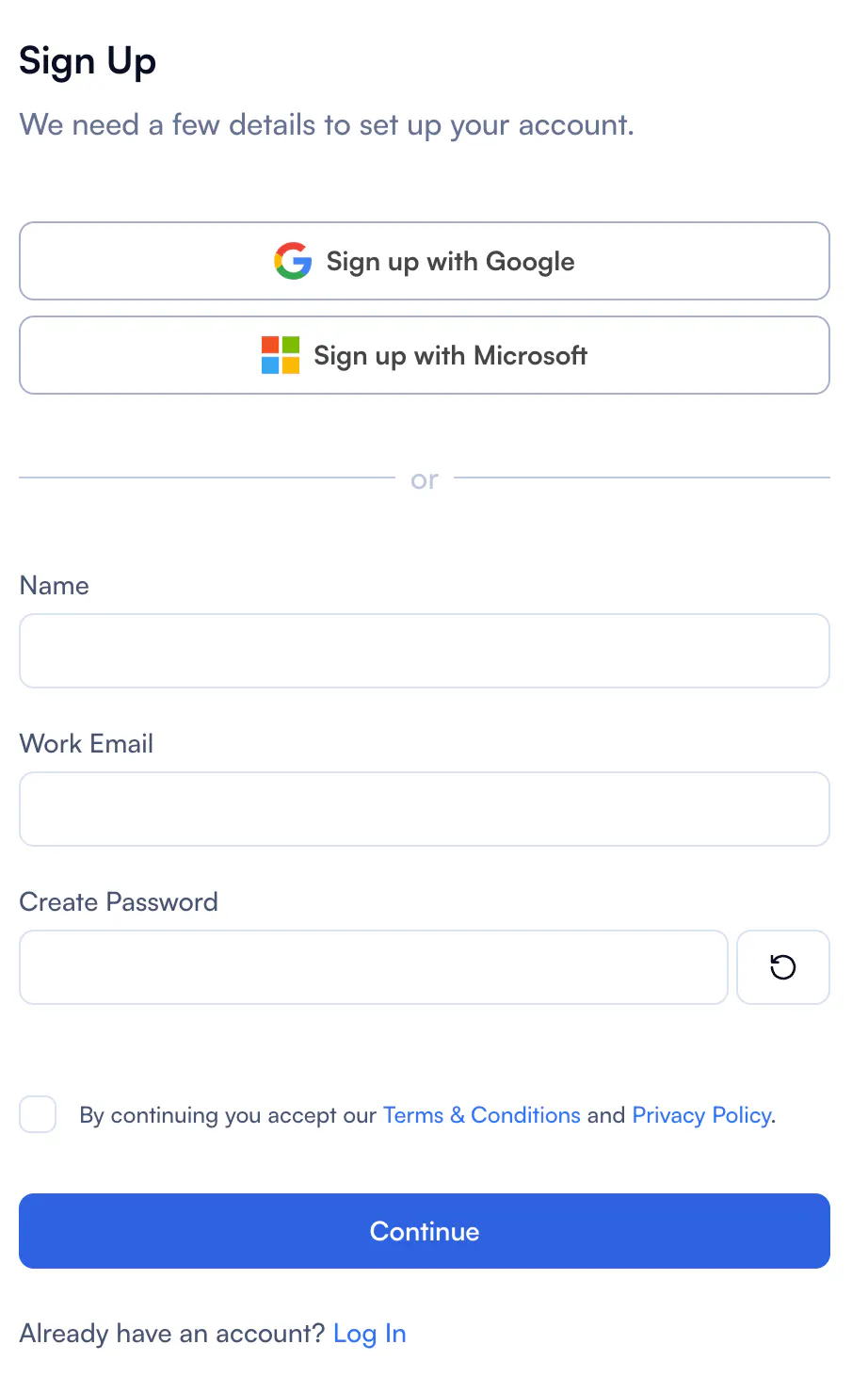
You can sign up using your Microsoft or Google Accounts, or fill in the required registration fields: your name, work email address, phone number, and password. Make sure the phone number you enter is the same one linked to your active WhatsApp account. This is where your OTP will be delivered.
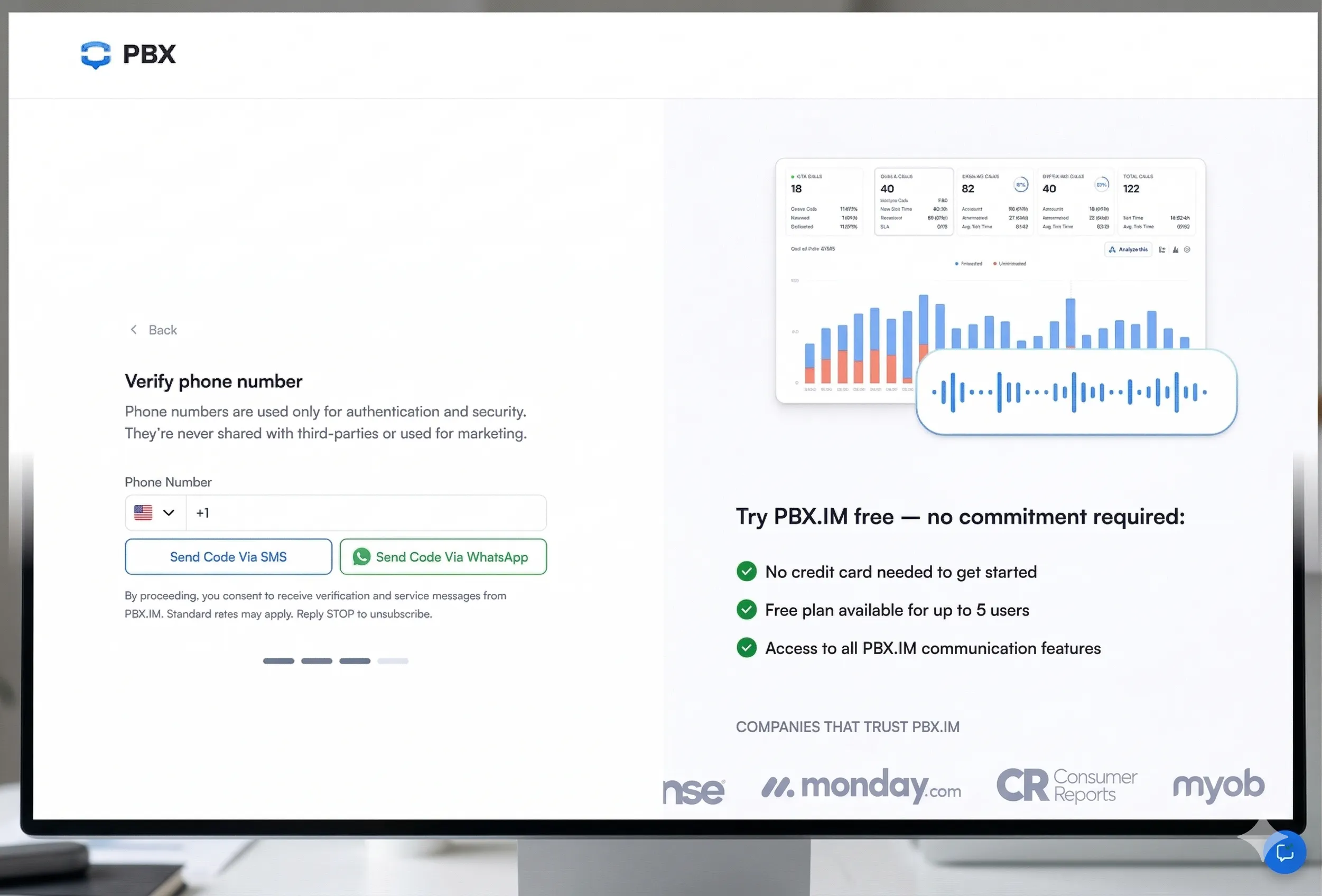
On the verification screen, you'll be shown OTP delivery options: WhatsApp and SMS. WhatsApp is presented as the primary option, but for some users, SMS is also available as a secondary option.
- Click "Send OTP via WhatsApp" to receive your code through WhatsApp.
- Click "Send OTP via SMS" to receive your code via text message instead.
Open WhatsApp on your phone. Within a few seconds, you should receive a message from PBX.IM containing a 4–6 digit verification code. The message will arrive from the official PBX.IM WhatsApp number.
Return to the PBX.IM registration page and type the OTP code you received into the verification field. Click "Verify" or "Confirm" to submit. Your account will be activated immediately, and you'll be redirected to your new PBX.IM dashboard.
Screenshot: OTP entry field on PBX.IM registration page with Verify button
Didn't get the code? See the Troubleshooting section below for help.
Most users receive their OTP instantly. But if something goes wrong, here are the most common issues and how to fix them quickly.
If your WhatsApp code hasn't arrived after a few seconds, try the following:
- Make sure WhatsApp is installed, open, and connected to the internet on your phone.
- Double-check that the phone number you entered includes the correct country code (e.g., +1 for US, +44 for UK).
- Check your WhatsApp "Requests" or spam folder, as OTPs occasionally land there from new contacts.
- Use the "Resend Code" button to request a new OTP. Note the following retry limits apply:
- 1st retry: available after 60 seconds
- 2nd retry: available after 60 seconds
- 3rd retry: available after 5 minutes
- 4th retry: available after 10 minutes
- 5th retry: available after 60 minutes
- Ensure your WhatsApp account is active and not restricted. If your number was recently changed, it may need re-verification within WhatsApp first.
If you see a message saying your phone number is already associated with a PBX.IM account:
- Your number is linked to an existing PBX.IM account. You don't need to register again. Try logging in instead by clicking "Sign In" on the PBX.IM homepage and entering your credentials.
- If you've forgotten your password, use the "Forgot Password" link to reset it.
- If you believe this is an error or you've lost access to the account, contact PBX.IM support for assistance.
Still stuck? Contact our support team